1. Why You Need the Odia InScript Keyboard on Windows 10
The Odia InScript (Indic Script) keyboard layout is the only keyboard layout permitted in Odisha government typing tests conducted by OSSC and OSSSC. It follows the BIS IS 16350 standard and is designed by C-DAC (Centre for Development of Advanced Computing).
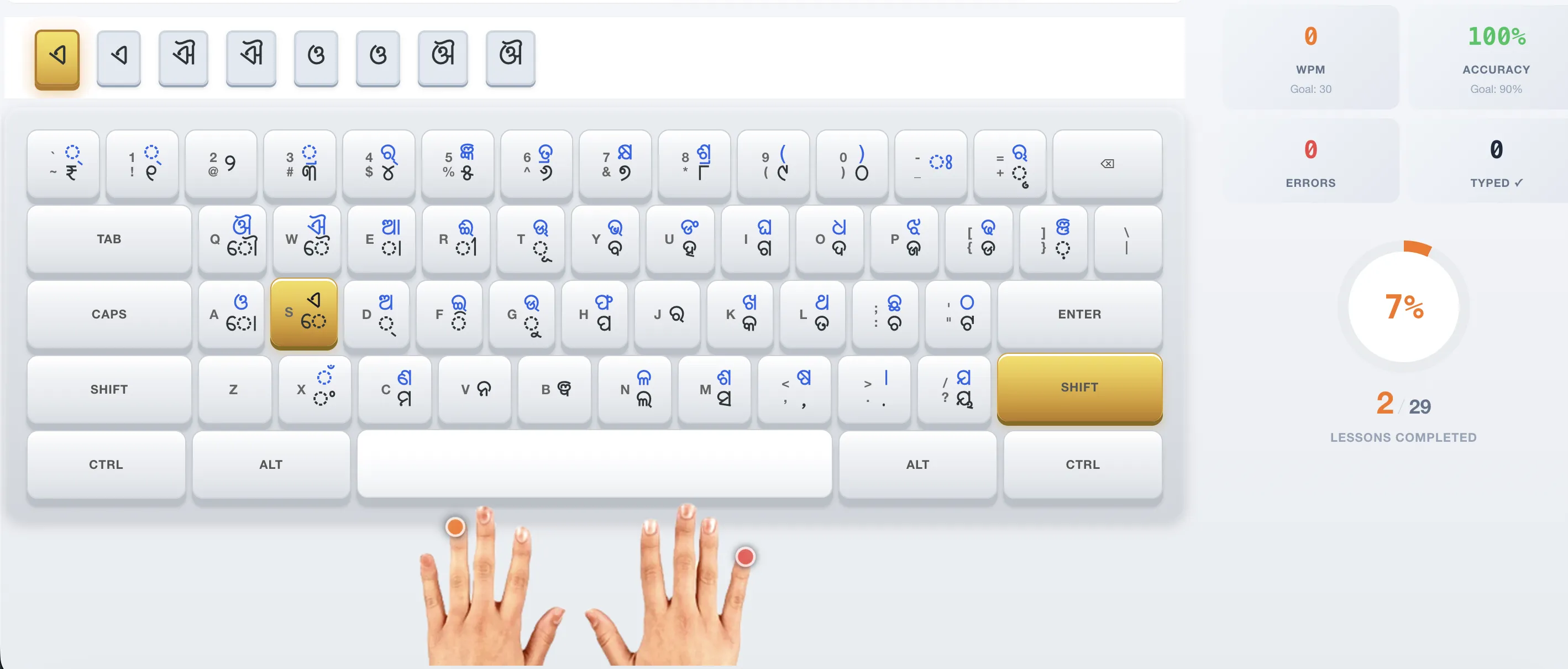
Unlike phonetic keyboards that let you type English letters and get Odia characters, InScript assigns each physical key a specific Odia character. This is the layout used in all government exam computers across Odisha. Installing the Odia InScript keyboard on your personal Windows 10 computer is essential for effective exam preparation.
Government Mandate: As per OSSC notification, only the InScript keyboard layout is accepted for Odia typing tests. Phonetic, transliteration, and Google Input Tools are not permitted in exam halls.
If you already have Windows 11 installed, see our guide for installing Odia InScript on Windows 11. The process is very similar but there are minor UI differences.
2. Method 1: Install via Windows Settings (Recommended)
This is the simplest method and works on all Windows 10 versions including Home, Pro, and Enterprise. Follow these steps:
Open Language Settings
Press Windows Key + I to open Settings. Click Time & Language, then select Language from the left sidebar.
Add Odia Language
Under "Preferred languages", click Add a language. Type Odia (or "Oriya") in the search bar. Select Odia (ଓଡ଼ିଆ) from the list and click Next.
Select InScript Keyboard
Ensure Odia InScript (India) is checked under "Keyboard layout". Uncheck "Set as my Windows display language" to keep English as your display language. Click Install.
Wait for Download
Windows will download the Odia language pack (~50 MB). This takes 30-60 seconds depending on your internet speed. No restart is required.
Pro Tip: If you see both "Odia InScript" and "Odia Phonetic" in the keyboard list, remove the Phonetic option. Always use InScript for exam practice since that is what appears in OSSC and OSSSC exam halls.
3. Method 2: Install via Control Panel
If you prefer the traditional Control Panel method or if the Settings app is not working correctly:
- Open Control Panel (search for it in the Start menu)
- Click Clock and Region → Region
- Go to the Keyboards and Languages tab
- Click Change keyboards...
- Click Add, scroll down to Odia, expand it
- Check Odia InScript (India)
- Click OK, then Apply
This achieves the same result as Method 1. The Control Panel approach is useful if you need to manage multiple keyboard layouts or if the Settings app does not show the Odia option.
4. How to Switch Between English and Odia
Once installed, switching between English and Odia keyboards is simple:
| Shortcut | Action |
|---|---|
| Windows + Space | Cycle through all installed keyboard layouts |
| Alt + Shift | Switch between the last two used keyboards |
| Taskbar Click | Click the language indicator (ENG / OR) in the system tray |
Most typists prefer Alt + Shift for quick toggling during practice sessions. The taskbar will show "ENG" or "OR" (or "ଓଡ଼ିଆ") depending on the active keyboard. When Odia is selected, your keyboard will type in the InScript layout.
If you prefer a visual indicator, you can enable the language bar by right-clicking the taskbar → Taskbar settings → Turn system icons on or off → make sure Input Indicator is On.
5. Verify Your Installation
To confirm the Odia InScript keyboard is working correctly:
- Open Notepad or any text editor
- Switch to Odia keyboard using Windows + Space
- Press the A key — you should see ଅ (Odia vowel "a")
- Press Shift + A — you should see ଆ (Odia vowel "aa")
- Press K — you should see କ (Odia consonant "ka")
- Press Shift + K — you should see ଖ (Odia consonant "kha")
If you see English characters instead of Odia characters, you are still on the English keyboard layout. Switch with Windows + Space and try again.
Quick Test: Type "ka" in sequence — you should get "କ" (pressing K alone produces the consonant). Type "a" alone and you should get "ଅ". If you see "A" or "K", switch to the Odia keyboard.
6. Troubleshooting Common Installation Issues
| Issue | Solution |
|---|---|
| Odia language not appearing in the search results | Make sure your Windows 10 is updated to the latest version (version 1903 or later). Earlier builds may not include Odia language pack. Run Windows Update and try again. |
| Odia InScript not appearing in keyboard list | Go to Language Options for Odia (Settings → Language → click on Odia → Options). Click "Add a keyboard" and select "Odia InScript (India)". |
| InScript layout typing English instead of Odia | You have switched to Odia language but not to the InScript keyboard layout. Go to Language Options, check the "Keyboards" section, remove any non-InScript layouts like "Odia Phonetic", and keep only "Odia InScript (India)". |
| Odia characters showing as boxes or squares | Missing Odia font support. Windows 10 includes the Nirmala UI font which supports Odia script. Try installing "Nirmala UI" or "Kalinga" font from the Microsoft Store or download the official Odia Unicode font from the Odisha government portal. |
| Keyboard language indicator not visible in taskbar | Go to Settings → Personalization → Taskbar → Turn system icons on or off → ensure "Input Indicator" is turned On. Alternatively, use Windows + Space to switch even without the indicator. |
| Alt + Shift not switching between keyboards | Check Advanced keyboard settings: Control Panel → Region → Keyboards and Languages → Change keyboards → Advanced Key Settings. Ensure "Between input languages" is set to Alt + Shift. |
7. Windows 10 vs Windows 11 — Key Differences
The installation process is very similar between Windows 10 and Windows 11, but there are some notable differences:
| Feature | Windows 10 | Windows 11 |
|---|---|---|
| Settings navigation | Time & Language → Language | Time & Language → Language & Region |
| Keyboard switch shortcut | Windows + Space or Alt + Shift | Windows + Space or Alt + Shift |
| Language pack size | ~50 MB | ~50 MB |
| InScript layout available | Yes (default) | Yes (default) |
| Control Panel method | Available | Available (deprecated but works) |
If you are using Windows 11, see our dedicated guide: How to Install Odia InScript Keyboard in Windows 11.
8. Start Practicing Right Away
Now that you have installed the Odia InScript keyboard on Windows 10, it is time to start practicing. The best way to build muscle memory is through structured practice that matches the keyboard layout you will use in the exam.
Even without the physical keyboard installed, you can begin typing Odia immediately using our interactive course. It maps your key presses to the correct Odia characters through a virtual InScript keyboard display.
Start with our Complete Odia Typing Guide which takes you from the very beginning — learning individual vowels and consonants — all the way to typing full exam passages at required speeds.
Frequently Asked Questions
Can I install Odia InScript on Windows 10 Home edition?
Yes, the Odia InScript keyboard works on all Windows 10 editions including Home, Pro, Enterprise, and Education. The installation process is identical for all editions.
Do I need to restart after installing Odia keyboard on Windows 10?
No, a restart is not required. The Odia keyboard is available for use immediately after the language pack finishes downloading. Just switch to it using Alt + Shift or Windows + Space.
Will Odia InScript work in all applications on Windows 10?
Yes, once installed, Odia InScript works system-wide in all applications — Notepad, Microsoft Word, web browsers, email clients, and exam software. As long as the application supports Unicode (which all modern applications do), Odia characters will display correctly.
Is Odia InScript the same as Odia Phonetic keyboard?
No. InScript assigns each physical key a fixed Odia character based on the BIS standard layout. Phonetic keyboards attempt to map English letters to similar-sounding Odia characters. Only InScript is accepted in OSSC and OSSSC exams.
Can I use Odia InScript on Windows 10 without internet?
Yes, after the initial download of the language pack, the keyboard works fully offline. All keyboard layouts are stored locally once installed.
⌨️ Start Typing Odia Now — No Installation Needed
Our course works in your browser with a virtual InScript keyboard. Start Lesson 1 right now.
Start Free Practice →